How to Recover Your Facebook Account Without a Password
Published Updated
Locked out of your own Facebook account? Official Meta recovery routes that need no password, what to know before sending ID, and how to spot recovery scams.
Losing the password to your own Facebook account is a bad afternoon, not a dead end. Meta runs several recovery routes that do not need the password at all, and most people get back in through one of them. Which route works depends on what you still have access to.
A note on scope: this guide is about recovering an account that belongs to you. Every step below asks you to prove you are the account holder, which is the point. There is no legitimate method for getting into an account that is not yours, and attempting it is both a crime in most countries and a violation of Meta's terms.
Before Anything Else: How to Spot a Recovery Scam
Account recovery attracts fraud, and people who have just been locked out are exactly who the fraud targets. Three rules cover almost all of it.
Nobody can recover a Facebook account for a fee. Not an agency, not a "Facebook support specialist" in your DMs, not a service advertising on another platform. Meta handles recovery itself and does not charge, and no outside party has the access to do it. Anyone asking for money is taking your money.
Never share a login code with anyone. A six-digit code sent to your phone or email is the thing standing between a stranger and your account. Meta's staff will never ask for it. A friend messaging to ask you to "forward the code" is a friend whose own account has already been taken, and the code is for yours.
Check the domain before typing anything. Recovery happens on facebook.com and nowhere else. Look-alike domains are the standard phishing method. Typing the address yourself rather than following a link from an email removes most of the risk.
Meta documents its guidance on this in the Help Center page on avoiding phishing and scams.
Route 1: Find Your Account With Your Email or Phone
This is the main path and the one to try first. It works if you still receive mail or texts at an address or number attached to the account.
Go to facebook.com/login/identify and enter the email address or phone number you registered with. Facebook shows the matching account and offers ways to receive a confirmation code. Pick one, enter the code, and set a new password.
If WhatsApp appears in the list and is linked to the same number, it often arrives faster than SMS and avoids carrier delivery problems. Either works.
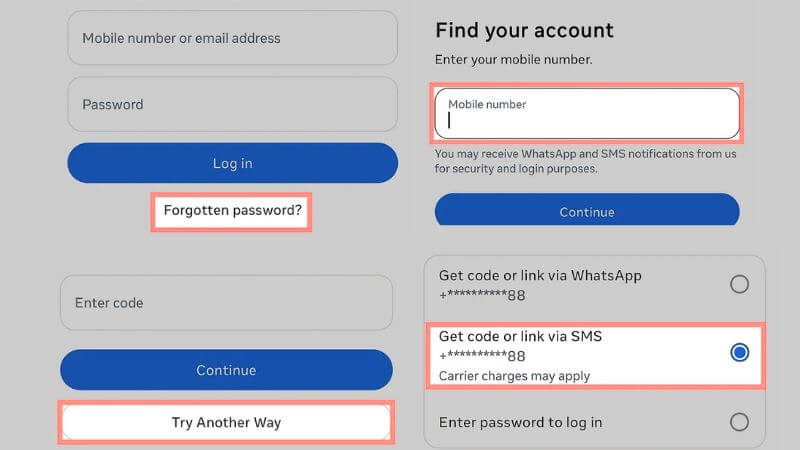
Meta's own walkthrough is on the Help Center page for resetting a forgotten password.
Route 2: Log In Through Meta Accounts Center
If your Instagram account is linked to your Facebook account through Accounts Center, and you are still signed in on Instagram, you can use that session to get back into Facebook. This is a documented feature rather than anything obscure, and it only works when the two accounts were already connected before you were locked out.
Open Instagram on a device where you are signed in, go to Settings, then Accounts Center. If the linked Facebook account appears under the login options, you can sign in to it from there.
Meta has been consolidating Accounts Center into Meta Accounts, so the exact menu wording and the availability of cross-account login have been shifting. Check what your app actually shows rather than assuming the option is present.
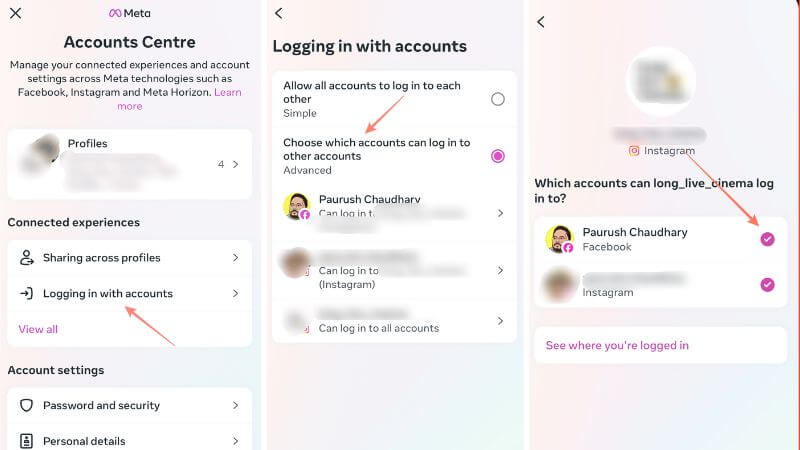
Details are in the Help Center page about Accounts Center and Meta Accounts.
Route 3: A Device You Are Still Signed In On
Worth checking before anything more involved. Browsers and phones hold Facebook sessions for a long time, so an old laptop, a tablet, or a work computer may still be logged in. If you find one, go straight to Settings > Password and security and set a new password from inside the account.
Do this while you have the chance. An active session is not permanent, and it is the easiest recovery you will get.
Route 4: No Access to Your Email or Phone
This is the hardest case, and it needs an honest caveat. Meta does offer a path when you have lost the contact methods on the account, but it is not guaranteed and it is not quick. Success depends on how much the account can be tied back to you: how long it has existed, whether it carries your real name and photographs, whether friends can vouch for it, and whether the identity document you provide matches the profile. Accounts under a pseudonym or with little history are much harder to recover, and sometimes cannot be.
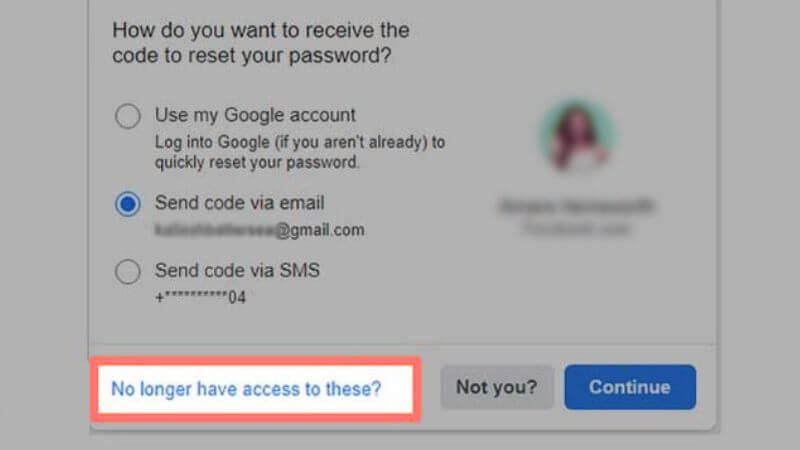
Start at facebook.com/hacked if the account was compromised, or use the "No longer have access to these?" link on the password reset screen if you have simply lost the email and phone.
Submitting an identity document: what to know first
At some point this route asks for a government ID, such as a Vietnamese CCCD, a passport or a driving licence. Hand that over carelessly and you have swapped a lost password for an identity-theft problem, so a few points are worth stating plainly.
Upload only through the official flow on facebook.com, reached by navigating there yourself. Never email a copy of your ID, never send it through a messaging app, and never give it to anyone offering to handle the recovery for you. Fake ID-collection pages are a common scam precisely because the payoff is so large.
Meta's own account of what it does with the file is worth reading before you upload rather than afterwards. It states that an uploaded ID is encrypted and stored securely, is never shown on your profile or to other people, and is reviewed by a mix of automated systems and staff. How long it is kept depends on why it was submitted, and there is a setting controlling whether Meta may also use it to improve its fake-ID detection. Turning that setting off means the copy is deleted within 30 days. The full explanation is on the Help Center page covering what happens to your ID after you send it, and the list of documents Meta accepts is on the types of ID page.
Send the minimum that satisfies the request. Meta says it ignores sensitive details on the document that are not needed for the review, and covering unrelated fields before uploading is reasonable as long as the name, photograph and date of birth stay legible.
One practical point people forget: if you photographed your ID to upload it, that image is still sitting in your camera roll afterwards. Delete it once the review is done.
Once You Are Back In: Set Up Passwordless Login
Having regained access, spend five minutes making the next lockout unlikely.
Passkeys
A passkey replaces the password with your device's own unlock method, Face ID, Touch ID or a PIN. It is stored on your device, synced through your Apple or Google account, and cannot be phished, because there is no code to hand over and nothing to type into a fake page.
Open the Facebook app, go to Settings > Password and security, tap Passkeys, and follow the prompts to create one.
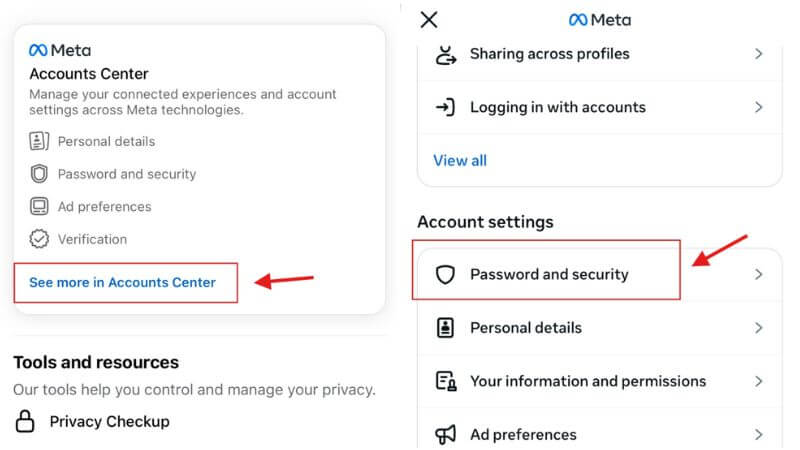
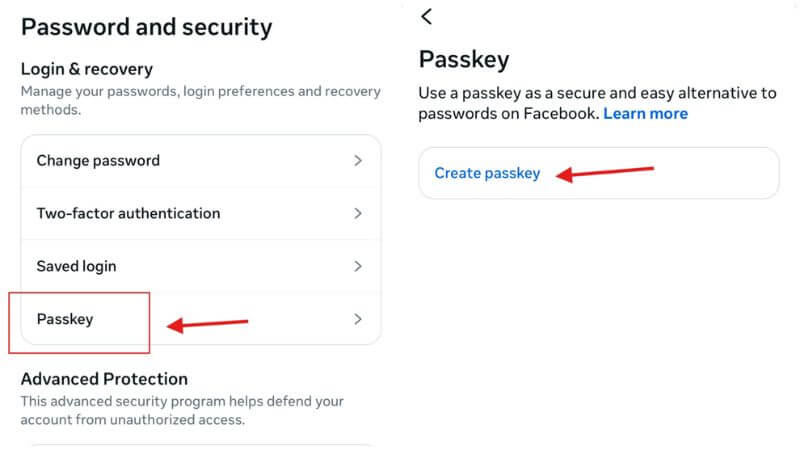
Setup instructions are on the Help Center page on creating a passkey.
Saved login info
Saved Login Info lets you tap your profile picture at the login screen instead of typing a password. Convenient on a phone only you use. Leave it off on anything shared or public, where it simply hands the account to whoever picks up the device.
Two-factor authentication, and your recovery contacts
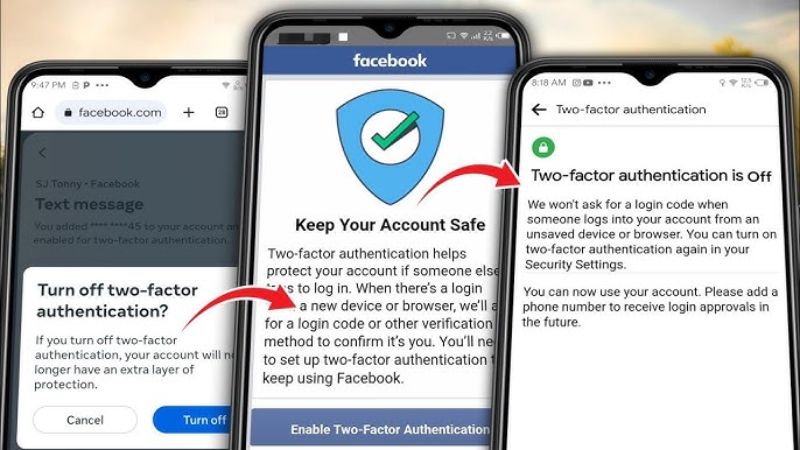
Turn on two-factor authentication under Password and security. An authenticator app is more robust than SMS, since it cannot be intercepted through a SIM swap.
Then check the email address and phone number on the account are current. Stale contact details are the single most common reason recovery turns difficult, and fixing that takes under a minute while you are already in the settings.
One caveat on passkeys: they sync through iCloud Keychain or Google Password Manager, so that account becomes the key to everything behind it. Protect it with its own strong password and two-factor authentication.
Frequently Asked Questions
Can I recover my account with no email and no phone?
Sometimes. Meta provides a route through facebook.com/hacked and the "No longer have access to these?" link, usually involving an identity document. It is not guaranteed. Accounts that are long-established, carry your real name and have recognisable photographs fare considerably better than new or pseudonymous ones.
How long does recovery take?
A code to your email or phone gets you in within minutes. Identity-document review takes longer, and Meta does not publish a committed turnaround, so plan for days rather than hours.
Someone is offering to recover my account for a fee. Should I?
No. Recovery is free and handled by Meta directly. Anyone charging for it is running a scam, and the information they ask for along the way is usually the real objective.
What if I lose the phone holding my passkey?
Passkeys sync to your cloud account. Sign in to iCloud or your Google account on the replacement device and the passkey comes with it. If you also lose access to that cloud account, fall back to email or phone recovery, which is why keeping those details current matters.
Does Facebook support ever contact me first?
Meta does not send staff to message you about account problems. Unsolicited contact claiming to be Facebook support is phishing. Anything genuine appears in your account's own notifications or in the Support Inbox at facebook.com/support.
Most lockouts end at Route 1. The rest come down to what you still have access to, which is why the five minutes spent on passkeys, two-factor authentication and current recovery contacts is worth more than any recovery trick. Follow the 2uid's blog for more tips, tools, and strategies in digital marketing to grow your business online.