
How to Turn Off Memories on Facebook (Quick & Easy Guide)
Learn how to turn off Memories on Facebook quickly with this easy guide. Manage or disable memory notifications for better privacy and control.
Sometimes, Facebook Memories can bring back unwanted emotions—like reminders of past relationships or moments you’d rather not revisit. They can also become distracting with frequent notifications. In this article, 2ui will show you how to turn off memories on Facebookin under a minute, helping you create a more peaceful and personalized social media experience without unwanted reminders.
How to Turn Off Memories on Facebook (Mobile & Desktop)
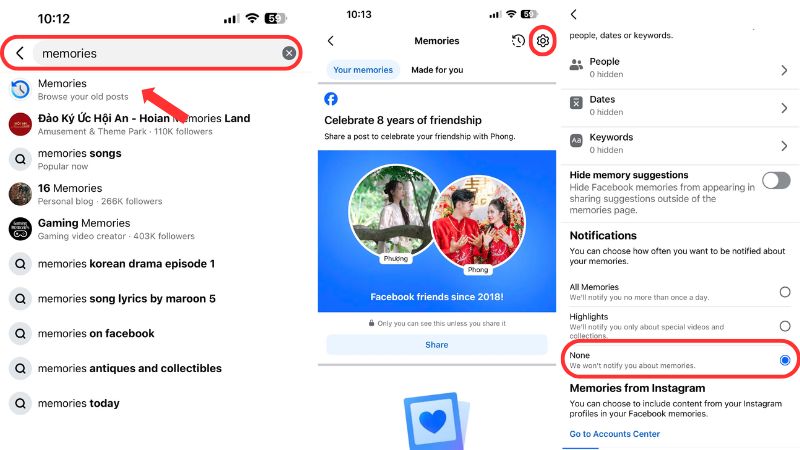
Instead of digging through complicated settings, use the quick Search Bar trick—just type “Memories” on Facebook to access the feature instantly. This saves time and gets you straight to the settings you need.
Turn off via the Mobile App (iPhone & Android)
Follow these quick steps to disable notifications in seconds:
- Step 1: Open the Facebook app
- Step 2: Tap the Search Bar and type Memories
- Step 3: Tap Memories, then press Settings (gear icon)
- Step 4: Select None to stop all notifications
Turn off via Desktop (Web Browser)
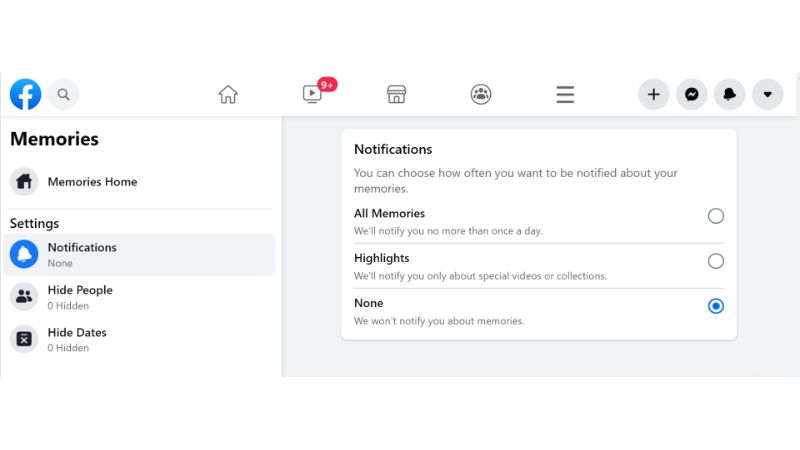
If you’re using Facebook on a computer, follow these simple steps to disable Memories notifications quickly:
- Step 1: Go to Facebook Home
- Step 2: On the left-hand menu, click Memories
- Step 3: Click Notifications at the top of the page
- Step 4: Select None to turn off all memory notifications
How to Hide Specific People or Dates from Memories
If you still enjoy revisiting memories but want to avoid certain people or difficult periods, use the Filters feature in Facebook to customize what you see.
Hide Memories Involving Specific People
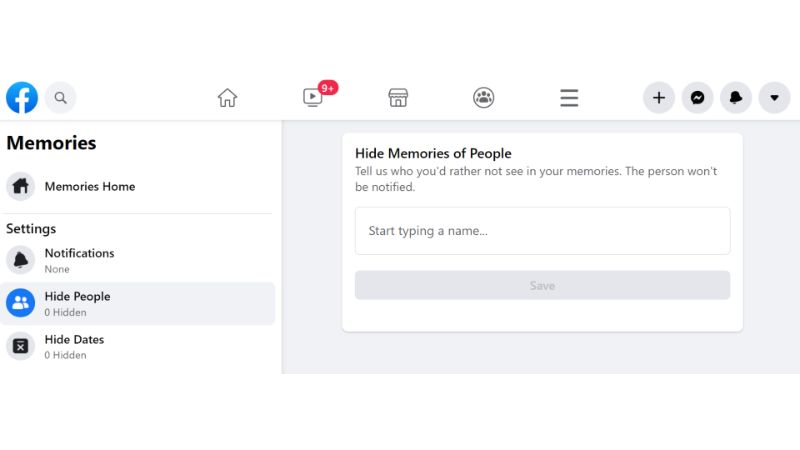
Follow these steps to hide memories that include certain individuals:
- Step 1: Go to Memories
- Step 2: Tap Settings (gear icon)
- Step 3: Select Hide People
- Step 4: Type the name of the person you want to hide
- Step 5: Tap Save
People who are hidden won't receive any notifications that you've hidden them — so you can adjust your settings privately and without worry.
Hide Memories from Certain Dates
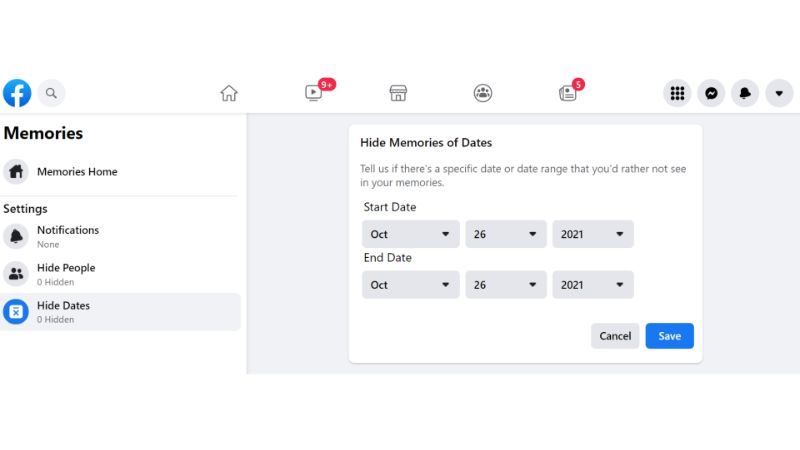
If you want to avoid memories from a specific time period, follow these steps:
- Step 1: Go to Memories
- Step 2: Tap Settings
- Step 3: Select Hide Dates
- Step 4: Set the Start Date and End Date
- Step 5: Tap Save
This way, you stay in control—keeping the good memories while quietly filtering out the ones you’d rather not revisit.
Frequently Asked Questions (FAQs)
1. Can I turn Facebook memories back on later?
Yes. Simply go back to Memories → Settings → Notifications and switch from None to All Memories. You can also remove any filters in Hide People or Hide Dates at any time.
2. Does hiding someone from memories block them or notify them?
No. Using Hide People does not Unfriend or Block anyone. They won’t receive any notification, and they won’t know you’ve hidden them.
3. Why am I still seeing memories after turning off notifications?
Because you’ve only disabled push notifications. Memories can still appear in your News Feed. To completely stop this, use the Hide Dates trick explained above to block them entirely.
In conclusion, learning How to Turn Off Memories on Facebook is a simple yet effective way to take control of your notifications and protect your emotional well-being. Whether you want to mute reminders or hide specific memories, these quick steps help you customize your experience in just seconds. By managing this feature properly, you can enjoy Facebook without unwanted interruptions or uncomfortable throwbacks. Follow the 2ui's blog for more tips, tools, and strategies in digital marketing to grow your business online.