
How to Use Instagram Quicksnap? Step-by-Step Guide
Learn How to Use Instagram Quicksnap step-by-step with this quick guide. Discover tips, setup, and how to share snaps easily on Instagram.
Looking for a faster way to share moments on Instagram? You’re in the right place. Quicksnap is a built-in in-chat camera feature that lets you capture and send photos instantly—making conversations more spontaneous and engaging. In this article, 2ui will walk you through how to use Instagram Quicksnap step by step, so you can share moments quickly and effortlessly.
What is Instagram Quicksnap?
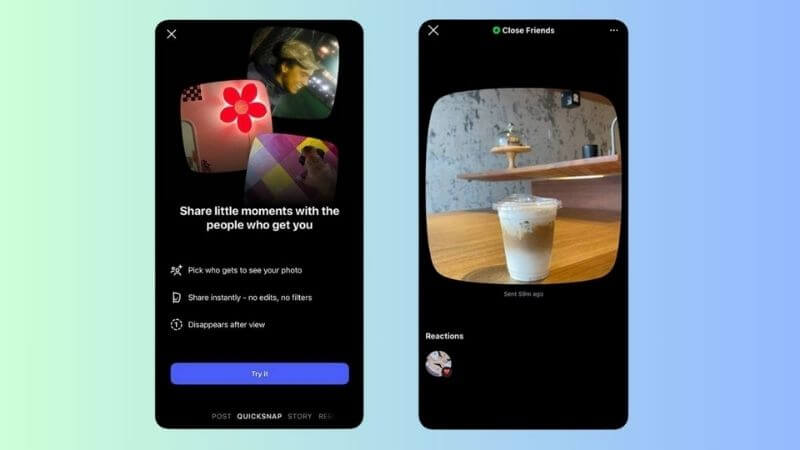
Instagram Quicksnap is a shortcut that lets you take and send photos instantly within a chat without opening the traditional camera. It’s built for fast, real-time sharing, with view-once images that disappear after being seen.
Quicksnap appears directly in the DM chat box, allowing you to snap and send photos in seconds. This reduces extra steps and makes conversations quicker and more seamless.
Quicksnap vs. Normal Camera Uploads:
- Speed: Quicksnap works instantly in chat, while normal uploads require opening the camera or gallery.
- Editing: Quicksnap offers minimal edits, whereas the normal camera provides full editing tools.
- Purpose: Quicksnap is ideal for spontaneous sharing, while normal uploads suit more polished content.
Where to Find Quicksnap on Your Instagram App?
On iOS (iPhone):
- Open Instagram and go to Direct Messages (DM).
- Enter any chat conversation.
- Look at the left side of the message input box.
- The Quicksnap icon appears as a small camera button for instant capture.
On Android:
- Open the Instagram app and access your DMs.
- Tap into a conversation with a friend.
- Check the toolbar next to the chat field.
- You’ll find the Quicksnap camera shortcut for quick photo sending.
How to Use Instagram Quicksnap (Step-by-Step)
Want to capture and share moments instantly without overthinking? How to Use Instagram Quicksnap will show you a faster, more spontaneous way to connect with friends through quick photos and real-time updates.
Step 1: Open a conversation
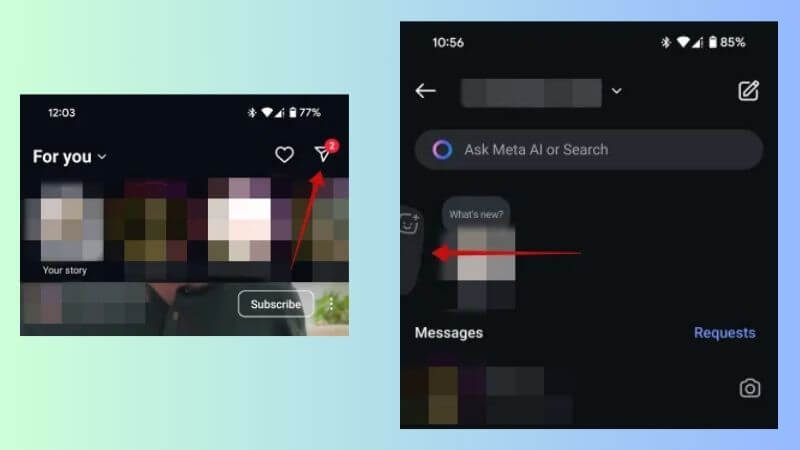
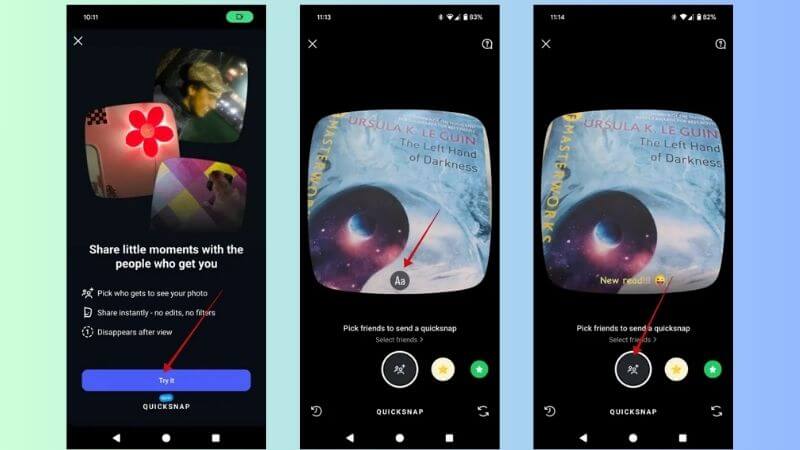
Launch Instagram and go to your Direct Messages (DM). Tap on any chat with a friend. If prompted, select “Try it ” to activate the feature.
Step 2: Tap the Quicksnap icon (or swipe right)
Inside the chat, look for the small camera icon next to the message box. You can also swipe right to quickly access the Quicksnap camera.
Step 3: Tap once for photo, hold for video
Tap the capture button once to take a photo, or press and hold to record a short video. This allows you to share moments instantly without leaving the chat.
Step 4: Add stickers/text
After capturing, you can customize your content by adding text, stickers, or simple effects to make your message more fun and expressive.
Step 5: Send
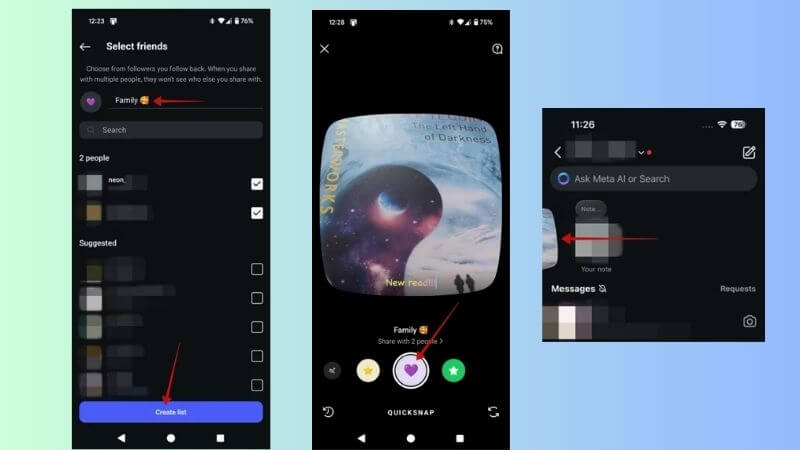
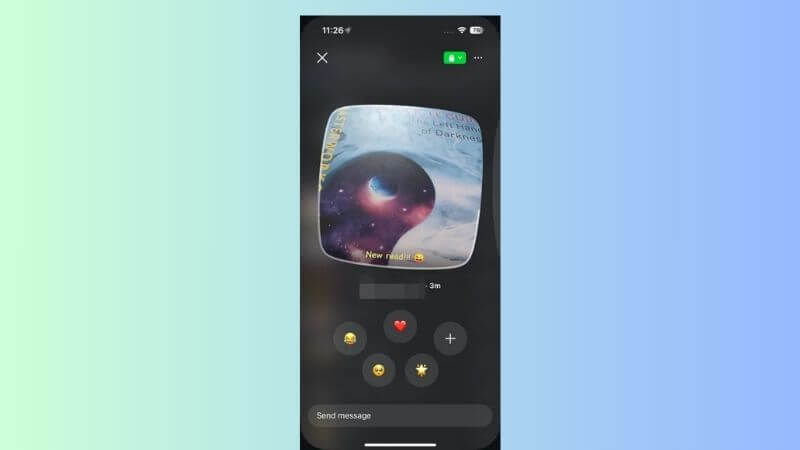
Tap the send button and choose the friend or group you want to share with. You can also create a list of selected contacts for faster sharing. Once sent, the recipient can view the Quicksnap instantly and react with emojis if they like.
Troubleshooting: Why Don’t I Have the Quicksnap Feature?
If you’re learning how to use instagram Quicksnap but can’t find the feature on your app, don’t worry—this is a common issue many users face. Below are the most frequent reasons why Quicksnap may not appear and simple ways to fix it quickly so you can start using it without hassle.
Problem 1: App is outdated
If you don’t see Quicksnap, your Instagram app may not be updated.
-> Solution: Go to the App Store (iOS) or Google Play Store (Android) and update Instagram to the latest version. New features like Quicksnap are often only available in recent updates.
Problem 2: Regional lock
Quicksnap may not be available in your region yet due to a gradual rollout.
-> Solution: Wait for the official global release. If you want early access, you can try using a VPN, but availability is not guaranteed.
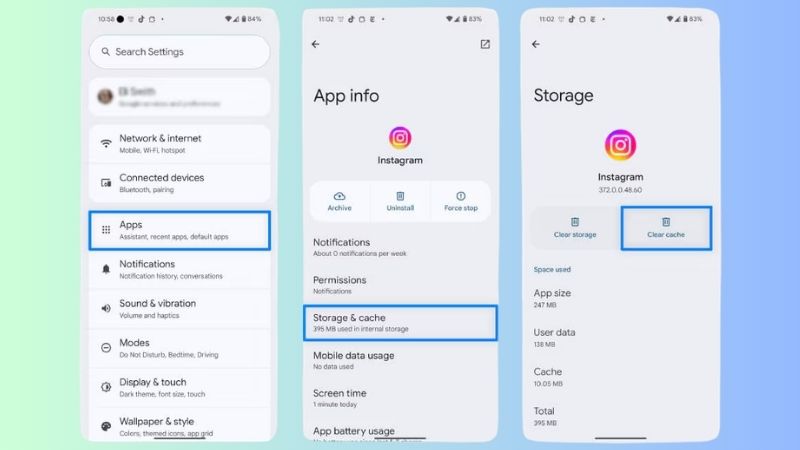
Problem 3: Cache issues
Sometimes, app cache can prevent new features from appearing.
-> Solution:
- On Android: Go to Settings → Apps → Instagram → Storage → Clear Cache.
- On iOS: Reinstall the app or offload it to refresh data.
5 Creative Pro-Tips for Aesthetic Quicksnaps
To make your Quicksnaps more eye-catching and engaging, try applying a few simple creative tips below. These ideas help your photos look more stylish while still keeping the spontaneous vibe.
- Use natural lighting: Shoot near a window or outdoors to get soft, flattering light that enhances your photo quality.
- Add “Music” stickers for vibe: Include music stickers to create mood and make your snaps feel more expressive.
- Play with the “Blur” effect: Use blur to focus on your subject and add a more aesthetic, artistic touch.
- Keep it minimal: Avoid overloading with stickers or text—clean visuals often look more modern and appealing.
- Capture candid moments: Focus on real, unposed shots to match the spontaneous nature of Quicksnap.

Frequently Asked Questions (FAQs)
Below are some common questions about Quicksnap to help you understand how it works and how to use it effectively.
1. Does Instagram notify if I screenshot a Quicksnap?
Yes. In most cases, Instagram will notify the sender if you take a screenshot of disappearing photos or videos sent via Quicksnap.
2. Can I unsend a Quicksnap?
Yes. Simply press and hold the message, then tap “Unsend” to remove it from the chat for both you and the recipient.
In this guide on how to use Instagram Quicksnap, you’ve learned how to capture and share moments instantly within chats. With its speed and simplicity, Quicksnap enhances real-time communication. Try it today to upgrade your messaging experience and make every conversation more engaging. Follow the 2ui's blog for more tips, tools, and strategies in digital marketing to grow your business online.